Friday, 16 April 2021

7 Brands to Invest in During 2021 and Why


crypto-chart

Investing in brands is often a long-term strategy that relies on fundamental analysis (i.e., the health of the company, its direction and other socioeconomic factors).

We can analyse balance sheets, company ambitions and how external legislation will affect how a brand will fair over the next 12 months or longer.

A lot has changed in the last 12 months, influencing the brands and companies you should consider investing in. Here we bring you some insights for investing in 2021 with our seven top picks.

How Can I Invest in Brands?

To be technically correct, you can’t really invest in brands. All you can get involved in are listed companies (brands and companies are not the same thing but are often used interchangeably – which we will do as well). To do this, you need to buy stocks and shares in the brand on a stock market platform.

In the past, you would have needed your own stockbroker to make this happen. But thanks to tech and new apps, anyone can open a new trade as long as they have a device and a WIFI connection.

The same easy access to investing is available in other areas too. You can make money from stocks and other assets without having to actually own it, known as CFDs. Read these updated guides on CFD in 2021 for more information on CityIndex – and also check out crypto trading, Forex trading of currencies and other investment opportunities.

What Brands Should I Invest In?

We’ve been looking to the future and have picked out seven top names that could be worth your investment in 2021. These companies could perform well and help you make a profit. Your investment is always at risk when buying into these brands!

1. Etsy

Etsy is an online platform that helps everyday people own their own eCommerce store. Users can sell almost anything and everything on Etsy as a side hustle or as a full-time income. The use of the platform is increasing due to rising unemployment in 2020 and growing entrepreneurship among younger age groups.

2. Tesla

Tesla has big ambitions, whether it be electric vehicles or landing on Mars. Some of their plans may be outlandish and exclusively for a small population of the super-rich, but the company is a success and looks set to keep growing.

3. Ford

One of the companies you probably didn’t expect to see on our list is Ford. Ford should be considered for your investment portfolio because of their latest work on a range of electric vehicles.

Whereas most people won’t be able to afford a Tesla vehicle, Ford will make electric vehicles that are more accessible to a larger proportion of people in 2021. Moreover, government legislation tackling diesel cars will catapult their USP further.

4. Fiver International

Fiver is one of the top online freelancing platforms, allowing talented professionals to connect with business owners and work on one-off or short-term contracts. It is the future of work as everything can be done remotely with payment safety for all parties.

Fiver is already exceptionally successful and is one of the very few freelancing platform brands that you can buy into right now.

5. WIX

For similar reasons to those mentioned above when discussing Etsy, WIX is another brand that is helping new entrepreneurs and small businesses. Users can build their own business website on the same day and help take entities online quickly. Use of their services increased over 2020, and those users won’t be going anywhere fast in 2021.

6. Beyond Meat

We’re all aware of the rise in veganism and vegetarians over the last years. And even people who eat meat and choose to have some meat-free meals each week to help the environment.

Beyond Meat is one of the stellar names behind this growing trend, and they are listed on the stock market. They have started appearing in big-name supermarkets, and their products are found in more places than ever. Expect more of the same in 2021.

7. FedEx Corporation

FedEx and other delivery and logistics companies had their work cut out in 2020. This workload is set to continue at high levels as 2021 begins in a similar fashion. Don’t be surprised to see the share price of FedEx grow over 2021 as they adapt to meet unprecedented demands for freight and air deliveries.

Can Investing in Brands Make You Rich?

Most people wanting to invest for the first time hear stories about people getting rich quick from a single investment. These instances are super rare, and pretty much impossible if you choose companies that are already valuable.

In fact, investing is not supposed to be a get-rich-quick strategy. Investing in brands should be done with a long-term vision. As the brand and company grow and become more successful, the value of its stock will increase slowly.

That’s why market kings like Warren Buffet claim that the stock market is simply a way for patient people to take money away from impatient people.

Do I Need a Lot of Money to Invest?

If one share of a company costs a couple of hundred pounds, you might think you need a couple of hundred pounds to invest in that company. Sounds logical, right? Well, the truth is you no longer need to buy whole shares of companies, and you can purchase proportions of single shares on many popular trading platforms today.

The modern world of investing in the stock market has enabled almost anybody can enter into this sphere with some spare income. Always remember your investment is at risk.

Friday, 17 November 2017

iPhone X: 10 tips on Face ID for owners

10 tips on Face ID for iPhone X owners
The verdict is final: Face ID is cool. Yes, the technology is slower than the Touch ID, but when it works properly, you do not even notice it. In a way, she’s like magic. And this is still the first generation of the system. Remember how slowly the first generation Touch ID worked? So it has its own nuances and bugs, like any other new technology. Face ID works fine in 90% of cases. If the other 10% are very frustrating, try following the tips listed below. Perhaps they will improve the work of Face ID for you.

10 tips on Face ID for iPhone X owners


1. Do not wait for the animation of the castle

If you just look at the locked screen and wait for the lock animation to finish, the unlock process will be very long.

Here’s what you need to do instead: immediately swipe the screen from bottom to top, and by the time the main screen opens, the phone will be unlocked. Face ID is designed so that you do not notice it at all. And usually, it is.
After a week of tests, we can accurately say that this way of unlocking is the fastest.
Perhaps in this way, Apple is trying to save the battery, but if you just look at the screen and do nothing, the phone seldom unlocks itself.

2. Quick method: touch and swap with one motion

The fastest method of using Face ID is by tapping. Do not even have to reach the side button to activate the screen.
If the phone is on the table, or if the display does not turn on when you lift it, just tap the bottom of the screen and immediately move your finger up. You will very quickly unlock the phone.

3. Hold the iPhone at a distance of 25-50 cm

The best Face ID works if you hold the phone at a distance of 25-50cm from your face. If this is too far for you, bring the phone closer or change the angle. When you are in bed and keep your smartphone too close to your face, technology is unlikely to work.

The easiest way for an unsuccessful attempt at authentication is not to change the angle, but simply to push the phone further away from the person or vice versa.

4. Pay attention to the purity of TrueDepth sensors

Over time, the area of the screen on which the sensors (the recess) is located, can be covered with dust. Especially if you are wearing a phone in a case. From time to time, wipe the display with a microfiber cloth.

5. Turn off attention recognition

If you often have to unlock your iPhone X without looking at it: in the car, when it is on the table, etc., turn off attention recognition.
Go to  Settings  ->  General  ->  Universal access  ->  Face ID and passcode and turn off the option  Require attention for Face ID.
Now Face ID will work even when you do not look at the display. However, this increases the risk that someone else will be able to enter your phone when you are sleeping or just do not look at it.

6. Avoid sun glasses

Some sunglasses do not pass the infrared light, which is used by the Face ID for attention recognition. If you often wear such glasses in connection with the work, it is better to disable this function (it is mentioned above).

7. Avoid the sun light

Direct sunlight interferes with Face ID to work properly, like any other camera. If you are trying to unlock the phone on the street, turn around so that sunlight does not reach either the camera or your face.

8. After an unsuccessful attempt, enter the password


If the Face ID authentication fails, do not try to re-enter it, but instead enter the password. When you enter a password, Face ID learns and remembers your face.

9. Turn on preview notifications on the lock screen


Many Face ID does not work very well when the lock screen is open. If you immediately navigate the screen, everything works fine. In this connection, problems arise. For example, the inability to quickly see the contents of their notifications on the lock screen.
To solve the problem, go to  Settings  ->  Notifications  ->  Show thumbnails  ->  Always .

Now, to view the content of notifications, you do not need to use Face ID.

10. Reset Face ID settings

Last Rescue – reset all Face ID settings. This will delete all data about your face.
Set-up-Face-ID-Step

Go to  Settings  ->  Face ID and passcode, and then there is the  Reset Face ID. After that, configure the technology again, crawling your face twice.

iPhone X: 10 tips on Face ID for owners

10 tips on Face ID for iPhone X owners
The verdict is final: Face ID is cool. Yes, the technology is slower than the Touch ID, but when it works properly, you do not even notice it. In a way, she’s like magic. And this is still the first generation of the system. Remember how slowly the first generation Touch ID worked? So it has its own nuances and bugs, like any other new technology. Face ID works fine in 90% of cases. If the other 10% are very frustrating, try following the tips listed below. Perhaps they will improve the work of Face ID for you.

10 tips on Face ID for iPhone X owners


1. Do not wait for the animation of the castle

If you just look at the locked screen and wait for the lock animation to finish, the unlock process will be very long.

Here’s what you need to do instead: immediately swipe the screen from bottom to top, and by the time the main screen opens, the phone will be unlocked. Face ID is designed so that you do not notice it at all. And usually, it is.
After a week of tests, we can accurately say that this way of unlocking is the fastest.
Perhaps in this way, Apple is trying to save the battery, but if you just look at the screen and do nothing, the phone seldom unlocks itself.

2. Quick method: touch and swap with one motion

The fastest method of using Face ID is by tapping. Do not even have to reach the side button to activate the screen.
If the phone is on the table, or if the display does not turn on when you lift it, just tap the bottom of the screen and immediately move your finger up. You will very quickly unlock the phone.

3. Hold the iPhone at a distance of 25-50 cm

The best Face ID works if you hold the phone at a distance of 25-50cm from your face. If this is too far for you, bring the phone closer or change the angle. When you are in bed and keep your smartphone too close to your face, technology is unlikely to work.
The easiest way for an unsuccessful attempt at authentication is not to change the angle, but simply to push the phone further away from the person or vice versa.

4. Pay attention to the purity of TrueDepth sensors

Over time, the area of the screen on which the sensors (the recess) is located, can be covered with dust. Especially if you are wearing a phone in a case. From time to time, wipe the display with a microfiber cloth.

5. Turn off attention recognition

If you often have to unlock your iPhone X without looking at it: in the car, when it is on the table, etc., turn off attention recognition.
Go to  Settings  ->  General  ->  Universal access  ->  Face ID and passcode and turn off the option  Require attention for Face ID.
Now Face ID will work even when you do not look at the display. However, this increases the risk that someone else will be able to enter your phone when you are sleeping or just do not look at it.

6. Avoid sun glasses

Some sunglasses do not pass the infrared light, which is used by the Face ID for attention recognition. If you often wear such glasses in connection with the work, it is better to disable this function (it is mentioned above).

7. Avoid the sun light

Direct sunlight interferes with Face ID to work properly, like any other camera. If you are trying to unlock the phone on the street, turn around so that sunlight does not reach either the camera or your face.

8. After an unsuccessful attempt, enter the password


If the Face ID authentication fails, do not try to re-enter it, but instead enter the password. When you enter a password, Face ID learns and remembers your face.

9. Turn on preview notifications on the lock screen


Many Face ID does not work very well when the lock screen is open. If you immediately navigate the screen, everything works fine. In this connection, problems arise. For example, the inability to quickly see the contents of their notifications on the lock screen.
To solve the problem, go to  Settings  ->  Notifications  ->  Show thumbnails  ->  Always .

Now, to view the content of notifications, you do not need to use Face ID.

10. Reset Face ID settings

Last Rescue – reset all Face ID settings. This will delete all data about your face.
Set-up-Face-ID-Step

Go to  Settings  ->  Face ID and passcode, and then there is the  Reset Face ID. After that, configure the technology again, crawling your face twice.

Thursday, 16 November 2017

How to enable preview notifications on a locked iPhone X

The iPhone X has a new feature, because of which previews of notifications on the lock screen are not displayed by default. When you unlock the phone using Face ID, the content of the notifications appears automatically. This is a very useful feature that improves the degree of your privacy. But for some, it is not very convenient. Sometimes Face ID does not work right away. While waiting and trying to change the position, you go to the automatic machine on the screen, and the main screen opens. I have to re-open notifications. It is unclear why such a problem arises. Perhaps Apple is trying to save the battery this way. Or it’s just a bug that will be fixed in future updates.
iPhone-X-Notification-Previews-Hidden-and-Exposed
If you also encounter such a problem or just do not worry that someone will see your messages, follow the steps below.

How to enable preview notifications on iPhone X

Step 1: Open the  Settings.
Step 2: Select  Notifications.
Step 3: Then click  Show Thumbnails.
Step 4: Choose  Always.
Now you will always see a preview notifications on the screen of your iPhone X, even when it’s locked.

Wednesday, 15 November 2017

How to Transfer Content from Moto Phone to Samsung Galaxy Note 8

First, we are describing two very simple ways of transferring all the data from your old Moto phone to your Galaxy Note 8. Are you one of the proud owners of the latest Samsung Galaxy Note 8? Congratulations on the new acquisition. But now do not worry about the time and effort that goes into transferring data from your old phone to the new one. Technology has made everything very easy. There are many ways of doing it. First, we will speak about the Smart Switch Mobile. The new gadget from Samsung comes with a built-in feature which makes the data transfer a very easy exercise that takes a few minutes and hardly any effort. A very useful application Smart Switch Mobile is already preloaded on Galaxy Note 8.
This allows you the freedom to move all the content from your Moto phone, with an Android operating system, including contacts, videos, photos, calendar reminders, notes, and messages etc. to your new Galaxy device. It can transmit the content stored both on the device and from its SD card.

To transfer data,

  1. First, ensure that both the devices have a minimum of 500 MB free space in their internal memory.
  2. If a wired link is being used for the data transfer, then the USB wire should be a compatible one and the old device should have the specific port for MTB USB cable.
  3. You can also use the wireless technique to transfer all the files if your Moto phone has the latest operating system.
  4. The app should be allowed to access information from the old phone, including contacts, storage, calendar, SMS data etc. You can change the status of permissions on the new mobile once the new device has received all the data and is updated.
Another method is to use Mobile transfer or phone transfer or any other similar app. It lets you transfer from an old Moto phone to the new gadget easily. It can transfer the entire data without any loss. It can transfer contacts, videos, pictures, calendar and all the other important data.
Download and install the app on your computer. Run it and then opt for Phone to Phone transfer.
  1. Now connect your Moto Phone and the Galaxy Note 8 to the computer, with their respective cables.
  2. You need to check the position of the phones on the screen. The new phone should be on the right side so that it is clear that the information is being transferred from the old one. You need to ensure that the data is going from the source to the new gadget
  3. Once both the phones are properly connected. Then you can see the display showing all the information on the old phone.
  4. You can select all the data, one by one, that you want to transfer to the new gadget. For example, if you want to transfer only contacts to be transmitted then choose only that. The same way you can choose whatever data you want to transfer.
wondershare mobile trans
  1. Do not disconnect or switch off any device while the transfer is in progress.
  2. Once the entire process is over. You can check the data on the new device and then stop the process and disconnect the two mobiles.
  3. You can erase the old mobile data if you want to use it for some other purpose.

There is another easy option.

  • With Moto and Galaxy Note 8, you have two phones which run on similar operating systems. So now you have the similar android operating system, on both the mobiles.
  • You need to take a backup of all your data on the Google drive. You will have access to all the data like contacts, downloaded files, calendar reminders, pictures and almost everything.
  • Once the new gadget is started, all you have to do is to log in to your Google account and start the installation of all the apps. All the backed up data will immediately get transferred to your new mobile.

So you can see that there are many quick and easy ways of transferring the data to your new gadget, Samsung Galaxy Note 8 from the old one.  Once all the data has been transferred completely, erase the old mobile data so that it is not misused by anyone. Enjoy the new gadget with élan and with all your data intact.

Wednesday, 8 November 2017

How to turn off True Tone on iPhone X

How to turn off True Tone on iPhone X
iPhone X contains the technology True Tone, which used to be only on the iPad Pro. The function adjusts the screen colors to fit the situation. In a well-lit room, the screen will turn yellow, but you probably will not even notice it. There is a possibility that you will not like the True Tone function (like Night Shift). In this case, it can be turned off for a while or for good.

How True Tone Works

True Tone – a technology that adapts the screen of the device for lighting. With it, colors are less dependent on your environment.
White is not always the same white. He has his own temperature. When white gives blue (as on a winter evening), its temperature is low. When white gives yellow (like a summer evening), its temperature is higher.
Devices without True Tone technology always display white the same. For example, if you are reading a book on the phone, the screen will look white at home under the lamp, but on the street in the summer day, the same screen will be too blue.
True Tone eliminates this difference. With it, the device adapts to the lighting and makes the white the way it should be. Indoors, outdoors, in summer, in winter, under a lamp, etc. – white always remains white.

Disable True Tone in the Management Point

Step 1: Open the Control Point.
Step 2: Click on the brightness slider using the 3D Touch.
iphone-8-true-tone-control

Step 3: Click on the Ture Tone icon.

Disable True Tone completely

Step 1: Open the  Settings and go to the  Display and Brightness.
Step 2: Click on the radio button next to  True Tone.
How to create archives on iPhone and iPad with iOS 11

What about Night Shift?

Night Shift is a less inconspicuous version of True Tone. It gives the screen a rich yellow color after sunset. This removes the strain from the eyes if you like to climb on the phone before going to bed. But this function is definitely not for everyone.

How to temporarily disable Face ID on iPhone X

How to disable Face ID on iPhone X (temporarily)
Need to temporarily disable Face ID? This is possible, and not even in one way. Note that these methods do not disable Face ID at all, but only for a while, until you enter a password. If you want to completely disable Face ID, you need to do this through Settings. But now not about this, we will talk about temporary ways.
There are several ways to temporarily disable Face ID. Some you can use intentionally, while others are triggered automatically.

How to temporarily disable Face ID

The easiest way is to do this by pressing the buttons.
  • Hold one of the Volume buttons simultaneously with the Side button for a couple of seconds until the Shutdown screen appears, the Med- ward and the Emergency Call are SOS.
  • As soon as the screen appears, release the buttons.
  • Click “Cancel” to close this screen and thereby disable Face ID.
WARNING: Do not hold the buttons too long, otherwise the emergency call will start automatically. If you do not release the buttons in time, the phone starts to emit a loud siren and starts counting from 3 before calling a local emergency service. There were many cases when people accidentally called emergency services, and they just came to their homes, so be careful!
 
Other ways to temporarily disable Face ID According to Apple, Face ID itself can be switched off for a while. This can also be used. For example, you can bring your phone to someone else’s face several times until Face ID turns off and does not require a password.
  • Make 5 unsuccessful attempts to unlock the phone, and after that Face ID will turn off.
  • Restart your iPhone X or turn off the previously disabled one.
  • Do not touch your smartphone for more than 48 hours.
  • Lock iPhone X through Find
  • Do not use the password on the iPhone X 6 and a half days, and Face ID 4 hours.
Face_ID_logo

As we mentioned above, Face ID can be completely disabled in Settings> Face ID by clicking on the radio button. However, this should not be done. If you turn off Face ID, you will have to enter your password each time to unlock your phone.

Tuesday, 7 November 2017

How to create karaoke videos from Animoji on iPhone X

create karaoke videos from Animoji on iPhone X
IPhone X officially came out, and all Twitter filled the hashtag #AnimojiKaraoke. In karaoke videos with Animoji, you just move your lips to your favourite songs with your favourite Animoji, which repeats all of your facial movements. Such videos are very fun to do and watch. If you also want to record your karaoke videos from Animoji, follow the instructions below to learn how to create karaoke videos from animoji on iphone x.

Also Read: Add virtual home button on iphone X

Step 1: Select a song

Of course first, you need to select a track. When you do this, download it, but not on the iPhone, but on another device. When you record karaoke videos from Animoji, the music will need to be enabled on another device, because the Animoji function will automatically turn off the audio on the iPhone X.

Step 2: Record the video from Animoji

Animoji-App

Videos from Animoji can be recorded only in Messages. Go into any dialogue and select the Animoiji icon in the bottom panel. Then select the character. Do not switch to a full-scale version of the application, otherwise, it will be more difficult to edit the video.
You can record video through the Messaging application itself, but it will be a maximum of 10 seconds. If you want the video to be longer, use the iOS 11 Recording screen function.

Step 3: Edit the video

iMovie for Mac

When the video from Animoji is ready, you will have to add music. If you have a Mac, then you can use the iMovie program. Add a video and a track to it. Synchronize the music with the video sequence by dragging it to the desired places.
Export the video, and that’s it! Now you can share it on any social network.

How to add a virtual Home button to Apple iPhone X

virtual Home button to Apple iPhone X
There is no iPhone X button Home, and most of the action is now performed with the help of gestures. Perhaps not all of them are suitable for you, at least until you got used to them not. That's the reason most people are looking for iphone x home button attachment. There is a solution – AssistiveTouch. Universal access – essentially a virtual Home button which cannot only return you to the main screen but also do more much more. Previously AssistiveTouch function used when the Home button is broke, or in times of iPhone 4s, to avoid premature failure.
When you enable and configure AssistiveTouch, you can add 3D Touch gestures, or long press a virtual button. When you press the on it, there will be several options, including Siri activation, application switching, screenshot, etc..

How to add a virtual Home button to Apple iphone x

Step 1: Go to Settings  ->  General  ->  Accessibility  ->  AssistiveTouch and press the switch at the top. After this virtual button appears on the screen. Place it where you want.
Step 2: Then click the top-level menu. You’ll see a button that will appear after clicking on the main. Typically, some of them are control centres, Siri, Home and alert. It is worth adding features Multitasking and Screen Capture.
Step 3: You can configure the one-touch gestures, double-tap and long press or 3D Touch.
 Also Read: Iphone x sales starts- 5 reasons to buy and not to
These gestures can set the most important steps. For example, one touch will open the main screen, double – multitasking and long press – to the control room. For 3D Touch, you can leave the activation of Siri.
That’s it, you now have a convenient virtual Home button.

Monday, 30 October 2017

8 steps to fix wiFi connectivity issues on Moto X4

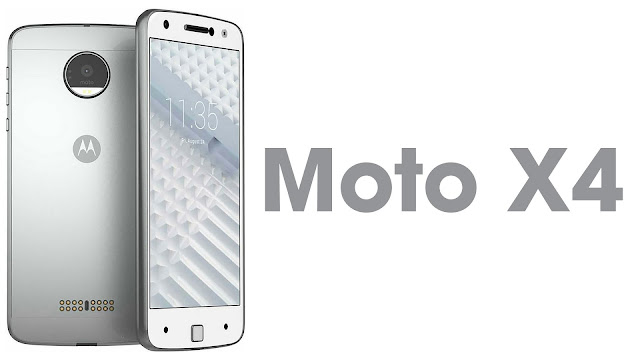
moto x4
Motorola Moto X4 is the latest X Series smartphone from Motorola Company. Moto X4 is an inexpensive solid dual camera and water-proof device. If you've got this device and you're facing WFi issue. Then you were most likely curious on how to fix WiFi problem on Moto X4.

Moto X4 Specifications

Regarding Moto X4 specification, the device is a 5.2-inch display device with a screen resolution of 1080 pixels x 1920 pixels. It's high-powered by 2.2 GHz octa-core Qualcomm snapdragon 630 processor alongside 3GB RAM and 32 GB internal storage expandable via microSD card up to 256GB. Moto X4 runs on android 7.1.1 nougat OS.

Despite these features, few issues concerning Wi-Fi connectivity are encountered in many cases resulting in an enormous issue to the users of the device. Users complained of disruptions in mid usage of Wi-Fi connectivity on their Moto X4 device.


How to fix wifi connectivity issues on Moto X4

1. Check your device settings

  • visit your device Settings icon , then select Wi-Fi
  • make sure your Wi-Fi switch situated in the upper-right of your device is Switched on.
  • tap the Menu icon situated on the upper-right
  • then tap Advance
  • tap the Wi-Fi to scan or view peer smartphone.

2. Troubleshooting


When you don't seem to be able to connect with Wi-Fi on your Moto X4, the explanation for that perhaps is that your WiFi strength of signals isn't enough and you would possibly have to check your device signal indication

Try the following during this case:
  • Connect your device to a distinct Wi-Fi network within range.
  • Some WLAN networks are designed solely to static IP addresses; you've got to examine with system admin for IP address assignments.
    If the WiFi error continues apply the Trouble-shooter or visits close licensed dealer.

3. Restart Your device


Sometimes the Wi-Fi issue simply goes off with a restart of the device, it’s a viable choice. Use the power button to switch off your device and turn it on again.

4. No web connection


When there's completely no internet connectivity users ought to attempt the following:-

  • Switch to a distinct URL or web address
  • Reconnecting to the Wi-Fi Network
  • Check if other Wi-Fi devices are performing on the network and take a look at reconnecting the Wi-Fi router and your Moto X4 device to the router.

5. Reset Your Network setting


    This involves selection of your Wi-Fi network from the list and so clicking on forget to reset the network setting. However, if the user is connecting for the first time then skip this step.
 once this restart your Moto X4 device wait for few seconds then reconnect to the Wi-Fi network.

6. Ensure you have web access


The User in all cases ought to initially make sure the internet access to the router that's being employed as if there also can be internet connectivity problems with your Wi-Fi routers. Users can simply check this by testing other Wi-Fi devices to the network.

7. Reset Your electronic equipment


    Even when attempting the above-named steps you're still facing the matter reset your modem to factory settings by pressing the reset button on the rear of the modem.
    If issue still persists make sure the problem is with your device by checking it into other Wi-Fi networks.


8. Recommended Updates


In most cases, it's been found that Wi-Fi problems are resolved by updating the device software package to the most recent version.

If your device remains not updated and you're facing Wi-Fi connectivity problems on your device, attempt updating your software to the most recent version and recheck the Wi-Fi connectivity.

Now you know a way to fix WiFi problem on Moto X4, one usually would have such issues on this device.

It is expected the items of recommendation mentioned here in this post will be able to answer off all of your Wi-Fi connectivity problem of your Moto X4 device.

We believe this guide will be useful to you in resolving your WiFi problem on Moto X4. Any further queries or questions or suggestions would be welcomed in the comment section below.
Easy way to protect your android phone device


protect your android phone
Android cell phones are one of the modern and popular gadgets all over the world. Therefore, nowadays these cell phones are the most common target for thieves and hackers. They always look for such cell phone devices which are easy to breach when connected to the cyber space. Android users should keep in mind that there are no hard and fast rules to make fully secure the android phone device. On another hand when someone is up to hacking or tracking your phone, you should get worry and try to stop that that culprit by applying basic protection methods. So, is it true to make secure your android phone device from all common security threats, with a little human effort? Yes, Android spy software can protect their cell phone device by the implementation of following mentioned steps.

Lock Your Phone


The modern android phone devices enable a user to store plenty of data within the phone memory such as photos, videos, confidential data, and music files, call recordings and plenty of other things alike.  Therefore, a cell phone needs to be locked with the help of android smart feature. It is very handy for users who don’t want to lock their phones with annoying PIN or passcode. So, phone lock is very necessary, if you left your phone at some place and someone gets their hands on, the person can easily view all the things stored within your phone device and your privacy could breach. In case of loss or theft same activity can he happened on your device and you may go through huge loss. Anyhow, android smart lock feature allows user to lock the phone only with your face.

Track the phone & delete your phone data


However, you have protected your phone with PIN and android smart feature. But if someone has theft your android phone, you can track the device by using the android device manager in order to track your theft phone and can delete all of your data in case having an emergency, but if you already have enabled a pair of settings first. It will help you out and don’t let anyone get their hands on the private data you have stored on the phone. The user can track the location of a cell phone to find out if lost but can delete the data remotely if someone has access to your device.

Scan your device & verify apps


The modern cell phone devices of Android operating systems enable a user to scan the cell phone device if something contains malware and malicious virus. The user can scan the entire smartphone device and also enable to verify the installed apps in order to know is there any third party application has installed on the device or not. Sometimes user installed un-authorized third-party applications on their cell phone devices that can cause serious issues such as data theft and lost or tempered and even sometimes it deletes the entire data stored in the device.

Keep your phone updated


Hackers are no doubt known as cybercriminals, but these criminals are very talented and well-educated. They always try to find out ways to break the security of modern cell phone devices in order to get something big. Therefore, the manufacturing companies keep sending updates on the user’s cell phone devices that enable a user to protect their Android devices by updating the apps and another operating system of the android phone. These updates are very important to use, so don’t ignore this kind of updates; otherwise, you may have to face the consequences.  

Create Data Backup


Everyone store the data within in their latest Android devices, but the modern hackers and thieves can get their hands on all the data you have stored which could very confidential and you may suffer from loses. Sometimes you have to wipe out the entire data of our Android phone in case someone has theft your device or you have lost it somewhere. You can create your own data backup on your mobile phone. You need to install TheOneSpy data backupapp on your phone and you will have the power to retrieve all the deleted data of your device. The data backup app enables a user to get your hands on all the lost or theft data of your android smartphone. When you store data on the device and you have already installed the data backup app on your target phone, at the same time all the data start syncing into the online control panel of the data backup app. No matter what happens to your data, you can get it back from TOS control panel. 

Conclusion:
If you want to make your android phone device secure and safe from all online dangers, then install the data backup software on your cell phone device and put your worries to rest.


Tuesday, 24 October 2017

How to recover a standard iOS app on iPhone or iPad

How to recover a standard iOS app on iPhone or iPad
It will be a shock to you that many using iPhone don’t know how to recover standards app on their iPhone and iPad after they mistakenly removed it. Today we will be guiding you on how to recover a standard iOS app on iPhone or iPad after removing it, it’s very important to know how to install them again. The question running in someone head now is what is a standard app? The applications that are pre-installed by Apple or should I say the iOS apps that came with the smartphone. Example of the standard applications are Calendar, Calculator, Compass, Contacts, FaceTime, Files, Mail, Maps, Music, Notes, Weather, etc. Restoring standard applications is just as easy as any other. They just need to download from the App Store.
If you want to try it out yourself, you can remove any standard application from your iPhone or iPad, and then follow the instructions below.

How to recover a standard iOS app on iPhone or iPad


  1. Open the App Store.App store icon
  2. Click the Search tab and enter the name of the desired application.
  3. Find the standard application in the list of results and download it.
  4. Repeat the same with all the standard applications that you want to restore.
All installed applications as usual will appear on the main screen. In our example, this was the Calculator application.
You can delete standard applications the same way as regular ones, but the function appeared relatively recently.
Make surethat you shake it a standard applicationas is now in the beginning of the list of resultsApp Store puts advertisingIn addition, among the results can be third-party applications with similar icons and names. The developer of standard applications will be Apple.
Links to download standard applications
Only you decide whether you need standard applications. For example, you can remove the Music application in order to get rid of the autoplay of songs in the machine or to set an alternative, like Spotify.

There are several applications that can not be restored, but they can not be deleted either. These include Settings, App Store and Safari.

Monday, 23 October 2017

3 things that makes a smartphone slow: making your device faster

making your smartphone faster
There are many conspiracy theories seeking to clarify why our phones, tablets and computers continuously slow down as they become older.

Internet searches for "iPhone slow" and "my android phone is running slow and freezing" spike after the release of a new-generation model, however there isn't any proof to recommend that manufacturers deliberately degrade the performance of older devices with software package updates.

Computer hardware doesn't usually slow down over its useful life.

Instead, there are many different reasons why smartphones, tablets and PCs begin to appear less snappy.

The good news is that you can usually take steps to boost your existing device's performance.

Memory bloat

Each time they update, apps usually become larger and additionally packed with options. Visual glamour is additionally a significant attraction, so desktop and mobile operating systems periodically receive vital redesigns.

All that additional functionality and flashiness requires your device to try and do a lot of computation than it did when it arrived home from the shop.

Given that it does not as if by magic speed up to compensate, it has less spare capacity obtainable to respond to you quickly.

Newer apps not only tend to try and do a lot of computation, they additionally sometimes take up more room in your device's storage.

Devices solely have a restricted quantity of fast "Random Access Memory" (RAM) accessible.

 one among a device's data storage elements, RAM is the rough equivalent of an office whiteboard — quick and convenient, however limited in capability. Its contents are wiped anytime you turn your device off.

When it runs out of space in RAM, your device will shift things to and from the much slower (and permanent till expressly erased) information storage, flash memory, that takes extensive time.

In older PCs with mechanical hard disks, this used to be referred to as "thrashing", as users detected the hard disk's read-write heads moving across the platters as they waited for information to be shifted in and out of the filled-up RAM.

Flash memory is silent and far quicker than magnetic hard disks ever were, however it's still orders of magnitude more sluggish than RAM.

Excessive caching

To make their apps run quicker, some designers create them store copies of things in RAM that they suppose the user would possibly need to examine once more to hurry things up.

For instance, an internet browser would possibly retain a duplicate of what the content in every tab appears like, even though just one tab is visible at a given moment.

Known as caching, this makes things work a lot of quicker — till your system starts to run out of memory.

    For caching to be effective, the quantity of space dedicated to it should be rigorously managed by the application and also the device's OS.

Some app developers do not place the effort that they ought to into doing this well, and their applications not only slow down over time, but will drag the remainder of the system down with them too.

More and a lot of software

It's also not uncommon for helpful software to be among "crapware" — less-than-useful add-ons like browser toolbars — that use system resources and impact performance.

Additional software will slow a system down in several ways: filling up permanent storage, consuming a lot of precious RAM, and using the computer's central processing unit "in the background" without you noticing.

All these factors may result in the system having fewer resources accessible to reply to you promptly.

 a brand new or factory-reset device tends to possess less of this accumulated "cruft" (unwanted information and software) installed, and thus has a lot of resources accessible to do the tasks that a user really desires.

Another unpleasant probability is that a number of the computing capabilities of your device are getting used by malware, probably viruses, worms or different sorts of malicious software.

How can you make a slow smartphone faster ?


You're not going to be able to match the performance of the most recent and greatest high-end smartphone, tablet, or laptop with an older model, as newer devices usually have basically faster elements.

But with a little quantity of effort, you'll get the most out of your existing device.

Whether you are using a phone, tablet, PC or Mac, the most helpful zero-cost action you'll be able to take is to uninstall inessential apps and add-ons.

However, in some circumstances it should be easier — after fastidiously backing up all of your data — to easily perform the equivalent of a factory reset and instal the OS from scratch, adding only the apps you truly want.

Sunday, 22 October 2017

How to force close app on iPhone 8 and the iPhone 8 plus

How to force close app on iPhone 8 and the iPhone 8 Plus

When you close app on iPhone, it continues to run within the background, however most of the tasks are off, as long as you do not open it once more. If there's a background task that has got to be completed, the application can continue to run. These tasks include locating, IP-telephony, etc.

To force close app on iPhone 4 to 8 plus series, you need to open the application switcher and do it, swiping it from there. It instantly completes all background tasks and frees up memory. Ever since Apple introduced multitasking in iOS 4, one among the main topics of debate was the question of whether or not to close the applications running within the background is what smartphone users need? We tend to believe that it's helpful, for instance, once an application hangs up or consumes plenty of battery, like Facebook or Pokémon Go.

IOS is meant to deal with multitasking, and, if you're using some applications frequently, we suggest that you do not close, just minimize it. Though, this can slow down the application to work as long as you do not open it the next time. Force closing fully end all the processes, then reopening the application can make it to run more swiftly.

If you have modified the previous model to the new iPhone 8 or iPhone 8 plus is, you'll be able to still force application to close in the same manner as before. If you do not know how this can be done, below we’ll tell you regarding it.

How to force close app on iPhone 8 and iPhone 8 plus


Step 1: First unlock your iPhone.

Step 2:  Double-click the home button to open the application tray. There you will see all the applications that run within the background.

Step 3:  Scroll cards left and right till you discover the app you would like to shut.

Step 4:  Swipe card applications up to close it.

The app will totally clean up all background tasks. You ought to force close applications that consume plenty of battery. These may include Facebook, WhatsApp and telegram.
force-close-apps-on-iphone-1-576x1024

How to close multiple applications on the iPhone 8 and iPhone Plus

In this case, the method is sort of similar, however you'll need to use 2 or more fingers. As we mentioned above, it's not necessary to close the applications you utilize frequently.
  • Press the home button twice.
  • Find the application that you just need to close.
  • Place many fingers on each application card and whisk them up. So it's attainable to close the 3 applications right away. You can additionally use four fingers, however it'll be harder so the three finger method is the simplest option.

force-close-multiple-apps-iphone-576x1024

Monday, 21 September 2015

8 Best Applications To Backup Your Android Phone Data
One of the main strengths of the Android platform, which cannot be overemphasized is its ability to be customized at will. This characteristics allow you to customize your android device to suit you, such as backing up your data.
Best Android Backup Applications
Once you grab a new android phone, you'll want to maximize it's full features. However, if your smartphone is widely customizable without you making a futuristic plan to backup your data, you may lose all your important files in the phone. There are many tutorials on how to backup your android phone data, but most of the tutorials are complex. Some of the methods may involve rooting which can brick your phone and void your warantee. That's why it is advisable to perform a backup of your using some simple but powerful applications, so you would not have to brick your phone in the process of rooting. Meanwhile here is a selection of the best apps to backup your data.

Best Android Applications to Backup Your Data 

1.  APK Share And Backup
I'm beginning with APK share and backup because of it's easy-to-use nature. This app is extremely easy to use, because you can simply click on a particular application to start the backup process. No big deal!After backing up, you'll see a share button. It actually allows you to send a saved copy of your backed-up data. Therefore, you can send a copy of your backup to your email for safekeeping.

2.  Easy Backup And Restore
This application is entirely free. As the name suggests, it is one of the simplest android backup app. All your backup data is stored in a .zip file and you can share it to your PC or leave it on your android phone. Easy Backup And Restore has the capability to back up and restore your data on hard drives, micro SD or in cloud servers and is compatible with version 2.3 of Android and latest versions. The advantages of this application is; it's not a paid app. It has many backup options, and you can create an in-app account, which you can restore on any android phone.

3.  Helium Backup
Previously known as the Carbon, the application works like any other. Helium can backup and restore from the cloud, from a micro SD card or from a PC. Available in free or paid version (about $5.79). Due to its advanced and complex nature, it works only on android version 4.0 upwards. Helium backup also has PC, Mac and Linux versions, so that you can manage your backups from a landline. Helium is capable of storing many types of data and restore them as well.

4.  AppMonster
This applications is quite popular for as a backup app. AppMonster is easy to use, and notifies you of the status of progress of the backup. Seeing "Backed Up" while performing a backup confirms the operation's success. If you opt for the free version, keep in mind that you won't have full control over the app, as some options will be inaccessible.

5.  Backup And Install Manager
The backup is done according to your desires, depending on the selected application.  Which means you can backup more than one application at a time. As with APK Share and Backup, you can share your backed up data to your email and through Bluetooth. Backup and install manager, just like the implies allows you to backup your files, install or uninstall an application.

6.  Ultimate Backup
This is a suitable application to backup an android phone. Ultimate backup can back up your smartphone and restore your data. Backups can be saved on Cloud or local storage, depending on your choice. It also lets you choose between backing up an APK file only, or both APK and its data. Its free version offers enough features for basic use. The application works from version 2.2 of Android to latest versions.

7.   Apowersoft: Smartphone Manager
We are approaching the best application. It offers a pleasant and efficient service. It is originally a free desktop application that allows you obviously manage your smartphone and backup, and restore your data. Apowersoft smartphone manager works with android version 3.0 and above. The only problem of this app is (to some individuals though), the desktop version is not free.

8.  Es File Explorer
Es file explorer is a popular file manager app, which performs diversities of works. You can manage your folders and backup/restore data with this application. These diverse features has given Es file explorer a top rank above its counterparts. To practice your backup, simply select the application management icon and to select items you want to save. Once validated this step automatically make copies on file attached to the application. To restore these applications, go to the destination folder where the backup data were save, and select restore.

The last three applications in the list (Ultimate Backup, Apowersoft and Es File Explorer) are the best backup and restore applications for your android device.